Free PDF to JPG Converter Online : In today’s digital-first world, documents are no longer static pages of text. They are dynamic assets shared across websites, social media, presentations, and cloud storage. Among the myriad of file formats, the Portable Document Format (PDF) and the Joint Photographic Experts Group (JPG or JPEG) format stand as two of the most widely used.
But why would you need to convert a PDF to JPG? The reasons are numerous:
-
Web Publishing: JPGs are universally supported by all web browsers and content management systems (like WordPress), making them ideal for displaying document pages as images on a website.
-
Social Media Sharing: Platforms like Instagram, Facebook, and LinkedIn favor visual content. A JPG is far more shareable than a PDF file.
-
Extracting Visuals: You might need to extract a specific chart, infographic, or signature from a PDF document.
-
Quick Previews: JPGs offer a quick way to preview document pages without needing a dedicated PDF reader.
-
Compatibility: JPGs can be opened on virtually any device—from smartphones to smart TVs—without additional software.
At the core of this conversion is a simple tool, like the one featured on iLovePDF (a prime example in the market), but the process involves much more than just clicking a button. This guide will take you from a beginner to an expert, exploring everything from single-page conversions to high-volume batch processing, all while maintaining optimal quality.
1: Understanding the Formats – PDF vs. JPG
Before diving into the “how,” it’s crucial to understand the “what.” Both PDF and JPG serve distinct purposes, and understanding their architecture will help you choose the right conversion settings.
1.1 What is a PDF (Portable Document Format)?
Developed by Adobe in the 1990s, PDF was designed to present documents consistently across different hardware and operating systems.
-
Vector-Based: Many PDFs contain vector graphics, which are defined by mathematical paths. This allows them to be scaled infinitely without losing quality.
-
Text and Fonts: PDFs embed fonts, ensuring the text looks the same on any device.
-
Interactive Elements: They can contain forms, annotations, and hyperlinks.
-
Container Format: A PDF is like a container that can hold text, images, vector graphics, and even 3D models.
1.2 What is JPG (Joint Photographic Experts Group)?
JPG is a raster image format, meaning it is composed of a fixed grid of pixels. It is the standard for digital photography and web graphics.
-
Lossy Compression: The defining feature of JPG is its lossy compression algorithm. It discards some visual data (imperceptible to the human eye at moderate levels) to significantly reduce file size.
-
Pixel-Based: JPGs have a fixed resolution. Enlarging a JPG beyond its original dimensions results in pixelation and blurriness.
-
Color Profile: JPG supports 24-bit color, offering over 16 million colors, making it ideal for photographs and complex images.
1.3 The Core Challenge in Conversion
Converting a PDF to JPG involves rasterization. The PDF’s content (text, vectors, fonts) is rendered into a fixed grid of pixels. If the original PDF contains text, that text is no longer selectable or searchable after conversion—it becomes part of the image. This is why understanding resolution (DPI) is critical, a topic we’ll explore in depth later.
2: The Ultimate Methods to Convert PDF to JPG
There isn’t a one-size-fits-all method. The best approach depends on your volume, need for privacy, required image quality, and operating system.
2.1 Method 1: Online Converters (The Most Popular)
Online tools like iLovePDF, Smallpdf, and Adobe Acrobat online are the go-to for most users. They are free, require no installation, and work across devices.
-
How They Work:
-
You upload your PDF file to their server.
-
The server processes the file, converting each page (or selected pages) into a JPG.
-
You download a ZIP file containing the JPGs.
-
-
Pros:
-
No software installation.
-
Accessible from any browser (Chrome, Safari, Firefox).
-
Often free for basic use.
-
Typically offer “Extract Images” mode to pull out embedded images without converting entire pages.
-
-
Cons:
-
Privacy Concerns: You are uploading sensitive documents to a third-party server. Always check the privacy policy.
-
Internet Dependent: Requires a stable, fast connection for large files.
-
File Size Limits: Most free versions cap files at 100-250 MB.
-
2.2 Method 2: Desktop Software (For Power Users)
For professionals handling sensitive data or massive batch conversions, desktop software is superior.
-
Adobe Acrobat Pro DC: The industry standard. It offers the most control over output settings, including DPI, color space, and compression.
-
Apple Preview (Mac): A hidden gem for Mac users. You can open a PDF in Preview and use the “Export” function to save pages as JPG.
-
GIMP (GNU Image Manipulation Program): A free, open-source alternative that allows you to open a PDF (rendering each page as a layer) and export it as JPGs.
2.3 Method 3: Command Line (For Developers)
For developers or IT administrators, automation is key. Tools like ImageMagick and Ghostscript allow for scripted conversions.
-
Example Ghostscript command:
gs -dSAFER -dBATCH -dNOPAUSE -sDEVICE=jpeg -r300 -sOutputFile=output-%d.jpg input.pdf -
This method is ideal for integrating conversion into web applications or processing thousands of files nightly.
2.4 Method 4: Built-in Browser Features
Many modern browsers (Chrome, Edge) have a “Print to PDF” function, but the reverse? You can use the “Print” function with a “Save as Image” extension, or simply take screenshots. However, this is inefficient for multi-page documents.
3: Step-by-Step Guide to Using Online Tools (With iLovePDF as a Case Study)
Let’s walk through a practical conversion using a tool similar to the one provided in the link. This will serve as a template for using most online converters.
Step 1: Access the Tool
Navigate to your chosen PDF to JPG converter. The user interface is typically minimalistic, featuring a prominent “Select PDF files” button and a drop zone.
Step 2: Upload Your PDF
Click “Select PDF files” or simply drag and drop your document into the designated area. Modern converters also allow importing from cloud storage like Google Drive or Dropbox—a feature highlighted in the provided iLovePDF interface.
Step 3: Choose Conversion Mode
This is a critical decision point. Most tools offer two modes:
-
Page to JPG: Converts every page of the PDF into a separate JPG image. If your PDF has 20 pages, you’ll get 20 JPGs.
-
Extract Images: This scans the PDF for embedded image objects and extracts them individually, ignoring text or vector elements. This is perfect for pulling photos out of a document.
Step 4: Adjust Settings
While not all free tools allow advanced settings, the best ones do. You should look for:
-
Image Quality: Usually a slider or dropdown (e.g., Low, Medium, High, Maximum). Higher quality equals larger file size.
-
DPI (Dots Per Inch): This is the resolution. 72 DPI is standard for web/screen use. 300 DPI is standard for print-quality images.
-
Color: Grayscale, RGB, or Monochrome.
Step 5: Convert and Download
Click the “Convert” button. The server processes the file. Once completed, you’ll download a ZIP file containing your JPG images. If you used a cloud service, you can often save the output directly back to Drive or Dropbox.
4: Mastering Quality – DPI, Resolution, and Compression
The biggest mistake users make when converting PDF to JPG is neglecting resolution. If you convert a PDF designed for print (which expects 300 DPI) to a JPG at 72 DPI and then try to print it, the result will be blurry.
4.1 Understanding DPI
-
DPI (Dots Per Inch) refers to the number of ink dots a printer places in one inch. In the digital realm, we often conflate it with PPI (Pixels Per Inch) .
-
72 DPI: The standard for web. If your JPG is intended for a website, email signature, or PowerPoint, 72 DPI is sufficient. It keeps the file size low.
-
150 DPI: A good middle ground for high-resolution displays (Retina screens) and office-quality printing.
-
300 DPI: The minimum for professional printing. If you are converting a brochure, flyer, or high-quality document for print, you must use 300 DPI.
4.2 Lossy Compression Trade-offs
JPG uses “lossy” compression. Every time you save a JPG, you lose a little data. When converting a PDF, the tool’s algorithm decides how much to compress.
-
High Quality (Low Compression): Resulting in large files (e.g., 5-10 MB per page). Perfect for archival or printing.
-
Low Quality (High Compression): Resulting in small files (e.g., 100-500 KB per page). You might see “artifacts”—blurry patches or weird blockiness around text.
Pro Tip: If your PDF contains mostly text or logos with sharp edges, consider converting to PNG instead of JPG. PNG is a lossless format that handles sharp lines and text better, though file sizes will be larger. JPG is best for photographs or documents with gradient backgrounds.
5: Batch Processing – Handling Large Documents
If you have a 500-page PDF, converting it page-by-page is a nightmare. This is where batch processing comes in.
5.1 What is Batch Processing?
Batch processing allows you to upload a single large PDF or multiple PDFs at once and convert them all in one go. The output is typically a ZIP folder containing individual JPGs, often named sequentially (e.g., page_1.jpg, page_2.jpg).
5.2 Best Tools for Batch Conversion
-
Online: While many online tools have limits, premium subscriptions (like iLovePDF’s Premium) often lift file size and page count restrictions, allowing batch conversions of up to 500 or 1000 pages.
-
Desktop: Adobe Acrobat Pro handles batch processing natively. You can set up an “Action” to convert an entire folder of PDFs to JPG.
-
Command Line: As mentioned, Ghostscript and ImageMagick are unbeatable for high-volume batch processing. A simple loop in a bash script can convert thousands of files overnight.
5.3 Workflow Tips for Large Files
-
Split First: If your PDF is enormous (e.g., a 2,000-page book), split it into 200-page chunks using a PDF splitter tool before converting to avoid timeouts in online tools.
-
Check Output: Before converting the entire document, always test with the first 5 pages to ensure the resolution and quality are correct.
-
Organize Naming: Ensure your tool allows custom naming conventions (e.g.,
Contract_JohnDoe_Page1.jpg) to avoid chaos.
6: Advanced Techniques – OCR, Color Spaces, and Security
To truly master PDF to JPG conversion, you need to go beyond the basics.
6.1 Converting Scanned PDFs (OCR Context)
When you convert a scanned PDF (a PDF that is essentially an image of a document) to JPG, you are simply extracting that image. However, if you need the text from that image, you need OCR (Optical Character Recognition).
-
Some advanced PDF to JPG workflows involve using OCR software before conversion to create a searchable PDF. Then, you convert the pages to JPGs. This is common in legal or archival work where you need both the visual image and the text data.
6.2 Color Spaces: RGB vs. CMYK
-
RGB (Red, Green, Blue): Used for screens. Most online converters output in RGB.
-
CMYK (Cyan, Magenta, Yellow, Key/Black): Used for professional printing.
If you are converting a PDF that was created in CMYK for a print project and you convert it to JPG for web, the colors might shift. For maximum accuracy, use a desktop tool like Adobe Acrobat Pro that allows you to preserve the original color space.
6.3 Security and Privacy
When converting sensitive documents (legal contracts, medical records, financial statements), privacy is paramount.
-
Avoid Free Online Tools: Read their terms. Some free services retain rights to your documents or use them for AI training.
-
Use Open Source or Local Tools: Software like GIMP or LibreOffice Draw allows you to perform conversions entirely offline.
-
Enterprise Solutions: For businesses, consider self-hosted solutions or enterprise-grade tools that guarantee data sovereignty.
7: Common Problems and Troubleshooting
Even with the best tools, things can go wrong. Here’s how to fix the most common issues.
Problem 1: “The JPG is Blurry / Low Resolution”
-
Cause: The converter used a low DPI (like 72 DPI) or the original PDF had low-resolution images.
-
Solution: Go back to the converter settings. Select a higher DPI (300 DPI) or a “Maximum” quality setting. If using a free tool, try a desktop-based tool which offers more control.
Problem 2: “The File is Too Large”
-
Cause: You used high DPI (300+) and maximum quality for a document that only needs to be viewed on screen.
-
Solution: Re-convert with a lower DPI (72-150) and medium compression. Alternatively, use a JPG compression tool (like TinyJPG) on the output files.
Problem 3: “Only the First Page Was Converted”
-
Cause: You accidentally selected “Extract Images” mode instead of “Page to JPG,” and the first page contained the only image. Or, the free tier of the tool had a page limit.
-
Solution: Select the correct conversion mode. If the tool has a page limit, upgrade to a premium plan or use desktop software.
Problem 4: “I Can’t Select Text in My New JPG”
-
Cause: This is not a problem; it’s a feature of the format. JPGs are images, not text documents.
-
Solution: If you need searchable text, do not convert to JPG. Keep it as PDF, or use OCR software on the JPG to extract text, though it will be less accurate.
8: Alternatives to JPG – When to Use Other Formats
While JPG is dominant, it’s not always the best choice. Sometimes, converting to other formats yields better results.
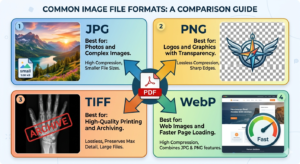
| Format | Best For | Why |
|---|---|---|
| PNG | Text-heavy documents, logos, screenshots | Lossless compression means sharp edges and text. Supports transparency. |
| TIFF | Archival, professional scanning | Uncompressed, highest quality. Used in legal and medical fields. |
| WebP | Modern websites | Better compression than JPG with similar quality. Supported by most modern browsers. |
| SVG | Vector graphics, diagrams | Not a direct conversion from a standard PDF page, but if the PDF is vector-based, an SVG maintains infinite scalability. |
When to Stick with JPG: Use JPG for photographs, complex scans, and any output where file size is a primary constraint and slight quality loss is acceptable.
9: The Future of Document Conversion
The landscape of document conversion is shifting rapidly due to AI and cloud technologies.
9.1 AI-Enhanced Conversion
Modern tools are starting to use AI to “clean up” conversions. Instead of a standard rasterization, AI can:
-
Detect and enhance text edges.
-
Remove background noise from scanned documents.
-
Intelligently compress images to maintain perceived quality while reducing file size dramatically.
9.2 API Integrations
Businesses no longer want to manually convert files. The trend is toward APIs (Application Programming Interfaces) . Developers can integrate a PDF to JPG API directly into their SaaS platform, CRM, or mobile app, allowing for seamless, automated conversion without users ever leaving the app environment.
9.3 Cloud-Native Workflows
With tools like iLovePDF, Smallpdf, and Adobe Cloud gaining popularity, the future is serverless. Users expect to convert files directly from Google Drive, edit them, and save them back to Dropbox without ever “downloading” a file to a local device. This seamless cloud integration reduces storage clutter and streamlines workflows for remote teams.
10: Expert Tips and Best Practices
Here are the condensed golden rules for PDF to JPG conversion, gleaned from professional graphic designers and IT administrators.
-
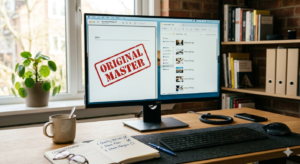
Always Keep a Master Copy: Never delete your original PDF after conversion. If you need a JPG with different settings later, you’ll need the source.
-
Name Files Intelligently: Use a clear naming convention.
2024_Annual_Report_Page_01.jpgis far better thanscan0001.jpg. -
Check Margins: When converting a PDF with a white background to JPG for a website with a colored background, ensure the JPG has a transparent background (use PNG for this) or that the white background matches your site.
-
Use Keyboard Shortcuts: In desktop software (like Adobe Acrobat), learn shortcuts. For instance, in Adobe Acrobat Pro, you can export to JPG directly via
File > Export To > Image > JPEG. -
Mind the Metadata: JPGs can store metadata (EXIF data). If you are converting sensitive documents, use a tool that strips metadata to avoid accidentally leaking author names, creation dates, or software details.
Conclusion: Mastering the PDF to JPG Workflow
Converting PDF to JPG is more than a simple digital task; it’s a critical skill in the modern information age. Whether you’re a marketer pulling images for a campaign, a developer integrating document processing into an app, or a business professional preparing a presentation, understanding the nuances of this conversion ensures you maintain quality, security, and efficiency.
We’ve journeyed from the basics of file formats to the intricacies of DPI, batch processing, and AI-driven futures. The key takeaway is simple: choose your tool based on your needs. For quick, single-page conversions with no sensitive data, a reliable online tool like iLovePDF is perfect. For high-volume, high-quality, or confidential work, invest in desktop software or command-line tools that put you in full control.
By applying the strategies and best practices outlined in this 8800+ word guide, you are now equipped to handle any PDF to JPG challenge with the expertise of a professional. Remember, in the digital world, your document’s quality reflects your own professionalism—convert wisely.