XML to PDF Converter : In the digital world, data is the new currency, and how we present it matters as much as how we collect it. Two file formats dominate this landscape: XML (Extensible Markup Language) , the structured standard for storing and transporting data, and PDF (Portable Document Format) , the universal standard for presenting documents that look the same on any device.
The need to convert XML to PDF arises in countless scenarios—from generating invoices and reports from databases to sharing structured data in a human-readable, non-editable format. Whether you’re a developer, a business analyst, or just someone who received an XML file and needs to read it, this guide is for you.
We will explore every aspect of converting XML to PDF. We’ll cover the simplest free online tools, detailed step-by-step manual methods using software like Microsoft Word and web browsers, advanced automated solutions, and crucial tips for preserving formatting and ensuring data security. By the end, you’ll be an expert on transforming raw XML data into polished, professional PDF documents.
What is XML and Why Convert It to PDF?
Before diving into the “how,” it’s essential to understand the “what” and “why.” This foundational knowledge will help you choose the best conversion method for your specific needs.
Understanding XML (Extensible Markup Language)
XML, or Extensible Markup Language, is a markup language designed to store and transport data. Unlike HTML, which is designed to display data, XML is all about describing the data itself. It is both human-readable and machine-readable, making it an ideal format for:
-
Data exchange between different systems and applications.
-
Configuration files for software and web applications.
-
Structured data storage, like in databases or content management systems.
An XML file uses custom tags to define objects and their attributes. For example, a simple XML file for an invoice might look like this:
<?xml version="1.0" encoding="UTF-8"?>
<invoice>
  <invoiceNumber>INV-2024-001</invoiceNumber>
  <date>2024-10-27</date>
  <customer>
    <name>John Doe</name>
    <email>john.doe@example.com</email>
  </customer>
  <items>
    <item>
      <description>Web Hosting - Basic Plan</description>
      <quantity>1</quantity>
      <price>$10.00</price>
    </item>
  </items>
  <total>$10.00</total>
</invoice>
While this is readable, it lacks visual styling. This is where PDF comes in.
The Case for PDF: Why Convert?
PDF (Portable Document Format), developed by Adobe and now an ISO standard, is the global standard for document exchange. Its core strengths are:
-
Universal Compatibility: A PDF looks identical on a Windows PC, a Mac, an Android tablet, or an iPhone.
-
Fixed Layout: Fonts, images, and formatting are preserved, ensuring the document appears exactly as the creator intended.
-
Security: PDFs support encryption, digital signatures, and password protection.
-
Non-Editable Nature: While tools exist to edit PDFs, they are inherently designed to be a final, unchangeable version of a document.
So, why convert XML to PDF? The primary reasons are:
-
Presentation: Transforming raw, tagged data into a professionally formatted invoice, report, or statement.
-
Sharing: Sending a document that anyone can open without needing specialized software or understanding XML syntax.
-
Archiving: Creating a permanent, tamper-evident record of data at a specific point in time.
-
Printing: PDFs are the preferred format for high-quality printing.
Method 1: The Quickest Route – Free Online Converters
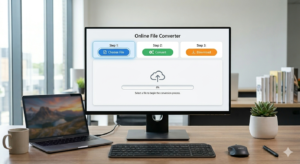
For a one-off conversion where you need a quick result, online converters are unbeatable. They require no software installation and are accessible from any device with a web browser. The XML to PDF Converter by FreeConvert.com is an excellent example of a reliable tool in this category.
How to Use an Online XML to PDF Converter (Step-by-Step):
-
Locate Your XML File: Find the XML file on your computer, cloud storage (like Dropbox or Google Drive), or have its URL ready.
-
Upload the File: Go to a trusted online converter like FreeConvert.com. Click the “Choose Files” button. You can upload from your device, a URL, or directly from cloud services.
-
Initiate Conversion: Click the “Convert to PDF” button. The tool will process your file.
-
Download: Once the conversion status shows “Done,” click the “Download PDF” button to save your new PDF file.
Pros:
-
Speed: Conversion often takes just a few seconds.
-
No Installation: Works entirely in your browser.
-
Ease of Use: The process is extremely simple.
-
Batch Conversion: Many tools allow you to convert multiple XML files to PDF at once.
Cons:
-
Privacy Concerns: You are uploading your data to a third-party server. While reputable services like FreeConvert use 256-bit SSL encryption and automatically delete files after a few hours, it’s not suitable for highly sensitive data.
-
File Size Limits: Free versions typically have a file size limit (e.g., 1GB).
-
Limited Formatting Control: The output PDF will likely be a raw representation of the XML code. If you need a styled document with logos and tables, this method might not suffice.
Method 2: The Manual Method – Using Microsoft Word
For users who need more control over the final appearance and already have Microsoft Office, this is an excellent solution. Microsoft Word can open XML files and then save them as PDFs, allowing you to apply formatting, styles, and layouts in between.
Step-by-Step Guide Using Microsoft Word:
-
Open Microsoft Word: Launch the application.
-
Open the XML File: Go to
File>Openand select your XML file. Word will handle the opening process. -
Select “As an XML table”: When Word prompts you, select “As an XML table.” This option imports the structured XML data into a table format, which is the easiest to work with and format.
-
Review and Format the Data: The data will now be in a Word table.
-
Use the Table Design and Layout tabs to adjust the look of your table.
-
Add your company logo, a title, and a header.
-
Apply styles to the text (e.g., bold for headers).
-
Use Word’s powerful tools to sort, filter, or manipulate the data as needed.
-
-
Save as PDF: Once you are satisfied with the document’s appearance, go to
File>Save As(orExport). Choose PDF (*.pdf) as the file type. Click “Save,” and your styled document is now a professional PDF.
Pros:
-
High Control: You have full control over the final formatting, layout, and style.
-
Data Manipulation: You can edit, sort, and filter the data in Word before conversion.
-
No External Upload: Your data remains on your computer, ensuring privacy.
Cons:
-
Requires Microsoft Word: This is a paid software, though many business environments already have it.
-
Not Ideal for Automation: This is a manual process, not suitable for converting hundreds of files.
-
Complex XML: Very large or deeply nested XML files may not open perfectly in Word.
Method 3: The Developer’s Choice – Using a Web Browser
This is a simple trick that leverages your web browser’s ability to display XML and its native “Print to PDF” function. It’s perfect for when you want a clean, readable printout of the XML data without any extra software.
Step-by-Step Guide:
-
Open the XML File in a Browser: Locate your XML file. Right-click it, select “Open with,” and choose your preferred browser (Chrome, Edge, Firefox, Safari).
-
View the Structured Data: The browser will parse the XML and display it in a collapsible, tree-structured view. This is generally more readable than the raw code in a text editor.
-
Open the Print Dialog: Use the browser’s menu (or press
Ctrl+Pon Windows/Linux orCmd+Pon Mac) to open the print dialog. -
Select “Save as PDF”: In the print dialog, choose “Save as PDF” as the destination printer.
-
Adjust Settings (Optional): You can adjust margins, layout (portrait/landscape), and scale before saving.
-
Save: Click “Save” and choose a location for your new PDF.
Pros:
-
Completely Free: Uses software you already have installed.
-
No Data Upload: Your file stays local.
-
Surprisingly Readable: The browser’s XML view is clean and hierarchical.
Cons:
-
No Formatting: The output is simply a printout of the XML code. You cannot add logos or rearrange data.
-
Limited to One File: Not suitable for batch processing.
Method 4: Advanced Automation – Using XSLT and Programming
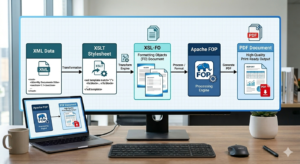
For businesses or developers who need to convert XML to PDF regularly, with complex styling and automation, a programmatic approach is the only viable solution. This method separates the data (XML) from the presentation using technologies like XSLT (Extensible Stylesheet Language Transformations) and a formatting engine like Apache FOP (Formatting Objects Processor).
The Workflow:
-
Create an XSLT Stylesheet: This is a file that defines how the XML data should be transformed. It can map XML elements to HTML tables, define layout, apply colors, and add headers and footers.
-
Transform XML to XSL-FO: The XSLT processor (e.g., within Java, .NET, or Python libraries) takes the XML data and the XSLT stylesheet and produces a new format called XSL-FO (XSL Formatting Objects). XSL-FO is an XML-based language designed specifically for paginated print layout.
-
Render XSL-FO to PDF: A rendering engine like Apache FOP (Formatting Objects Processor) takes the XSL-FO file and generates the final PDF document with precise layout control.
Why Choose This Method?
-
Automation: The entire process can be automated. A script can watch a folder, and any new XML file dropped in is automatically converted to a beautifully styled PDF.
-
Consistency: Every PDF produced follows the exact same design rules, ensuring brand consistency.
-
Complex Layouts: You can create highly complex layouts, including multi-page reports, tables of contents, and embedded images.
-
Scalability: Designed to handle thousands or even millions of conversions efficiently.
Cons:
-
High Complexity: Requires programming knowledge (Java, C#, Python) and familiarity with XSLT and XSL-FO.
-
Setup Time: Initial setup and stylesheet creation require a significant time investment.
Preserving Formatting and Styling: The Core Challenge
The biggest challenge in converting XML to PDF is preserving or applying the desired formatting. An XML file, by itself, has no visual styling. It’s pure data. Here’s how different methods address this:
| Conversion Method | Formatting Control | Best Use Case |
|---|---|---|
| Online Converter | Minimal. Outputs raw XML code as text. | Quick, one-off viewing of simple XML files. |
| Web Browser (Print to PDF) | Minimal. Outputs a printout of the collapsible XML tree. | Creating a readable, code-based archive of the XML. |
| Microsoft Word | Full Control. You can design tables, add logos, and apply styles manually. | Creating styled, professional documents from structured data when you have time to format. |
| XSLT/Programming | Full Control. You define the rules for styling once, and they are applied perfectly and consistently every time. | Automating the creation of large volumes of reports, invoices, or statements with consistent branding. |
If your goal is to create a report that looks like it came from your company, complete with a logo, page numbers, and a clean table layout, the manual (Word) or automated (XSLT) methods are your only real options.
Data Security: What to Consider When Converting
When converting XML to PDF, especially using online tools, security should be a top priority. XML files can contain sensitive data like personally identifiable information (PII), financial details, or proprietary business logic.
Key Security Practices:
-
Read the Privacy Policy: Before using any online converter, read its privacy policy. Look for statements about encryption, data retention, and whether files are shared with third parties.
-
Prioritize SSL Encryption: Ensure the website uses HTTPS. Reputable services like FreeConvert use 256-bit SSL encryption, the same standard used by banks, to protect your files during upload and download.
-
Automatic File Deletion: The best online converters automatically delete your files from their servers after a set period (often a few hours). This minimizes the window of risk.
-
Sensitive Data: For financial records, legal documents, or health information, avoid online converters altogether. Use offline methods like Microsoft Word or a local programmatic solution.
-
Secure Your Output PDF: After conversion, you can add another layer of security. Most PDF tools allow you to add a password to open the document or restrict editing and printing.

Choosing the Right XML to PDF Converter: A Quick Checklist
With so many options available, use this checklist to select the method that best fits your needs:
-
File Size: Is your XML file larger than 1GB? If so, a free online converter may not work. Consider using a desktop application or a programmatic method.
-
Volume: Are you converting one file or a hundred? For bulk conversions, automated tools or batch-processing online converters are essential.
-
Formatting: Do you need the final PDF to have a specific style, logo, or layout? If yes, choose Microsoft Word or a programmatic XSLT approach.
-
Security: Is the data sensitive? For maximum security, avoid uploading to any third-party service. Use offline tools.
-
Technical Skill: Are you a developer comfortable with code, or do you need a simple, point-and-click solution? Your skill level will heavily influence your choice.
Troubleshooting Common Conversion Issues
Even with the best tools, you might encounter issues. Here’s how to solve them:
-
Issue: “Invalid XML” Error.
-
Cause: The XML file has syntax errors (e.g., a missing closing tag, an unescaped special character).
-
Solution: Open the XML file in a text editor or a specialized XML editor (like Notepad++ or VS Code) that highlights syntax. Check for and fix the errors. Alternatively, use an online XML validator before attempting conversion.
-
-
Issue: The PDF Output is Blank.
-
Cause: The XML file might be empty, or the converter could not parse its structure.
-
Solution: Open the XML file in a web browser to see if it contains data. If it does, try a different conversion tool.
-
-
Issue: The PDF Formatting is a Mess.
-
Cause: You likely used a method that doesn’t support styling (like an online converter) for a complex XML file.
-
Solution: Switch to a method that offers formatting control, such as opening the file in Microsoft Word and formatting it manually before saving as PDF.
-
-
Issue: The Converted PDF is Huge in File Size.
-
Cause: The PDF may contain embedded fonts or high-resolution images referenced in the XML.
-
Solution: Use a PDF optimizer tool or, in a programmatic approach, adjust your XSL-FO to use standard fonts and compress images.
-
Future Trends: XML, PDF, and the Evolving Digital Landscape
The need to convert XML to PDF is not fading. In fact, it’s becoming more sophisticated.
-
AI-Powered Conversion: We are beginning to see tools that use machine learning to intelligently map XML data to the most logical and aesthetically pleasing PDF layouts, reducing the need for manual XSLT coding.
-
Cloud-Based Automation: Services like AWS Lambda or Azure Functions make it easier than ever to build serverless, event-driven conversion pipelines. An XML file saved to a cloud bucket can trigger an automatic conversion to PDF, which is then emailed or saved elsewhere.
-
Enhanced Accessibility: There is a growing demand for PDFs that are not only visually accurate but also accessible. This means generating tagged PDFs from XML that are compatible with screen readers and other assistive technologies. Modern conversion tools are starting to prioritize this.
-
Blockchain Integration: For documents requiring proof of authenticity, we may see tighter integration where the conversion from XML to PDF creates a hash that is stored on a blockchain, providing an immutable record of the document’s content at the time of conversion.
Conclusion: Master Your XML to PDF Conversion Needs
Converting XML to PDF is a common task with a spectrum of solutions, each suited to different needs. You can now confidently choose the right path:
-
For a quick, one-off job with no styling needs, use a trusted online converter like FreeConvert.com.
-
For a styled, professional document from a single file, use Microsoft Word as your manual bridge.
-
For a quick, readable printout of the code itself, use your web browser’s “Print to PDF” function.
-
For large-scale, automated, perfectly formatted reports, invest time in learning the XSLT and Apache FOP method.
By understanding the strengths and limitations of each approach, you can ensure your data is not only converted but presented in a way that is secure, professional, and perfectly suited to your audience. The journey from raw XML to a polished PDF is a story of transforming data into information, and with this guide, you have the tools to tell that story effectively.