JSON to PDF Online : In the modern digital landscape, data is the new oil, but it’s only valuable when it can be effectively presented and shared. Two of the most ubiquitous formats in this ecosystem are JSON (JavaScript Object Notation) and PDF (Portable Document Format). JSON is the language of web APIs, data storage, and configuration, while PDF is the gold standard for document exchange, reporting, and archiving.
The bridge between these two formats—the process of converting JSON to PDF—has become a critical need for developers, data analysts, and businesses alike. Whether you need to generate invoices from a database, create reports from API data, or share structured data in a universally readable format, understanding how to perform a JSON to PDF conversion efficiently is an essential skill.
This comprehensive guide will walk you through everything you need to know. We’ll explore what JSON and PDF are, why you’d need to convert between them, and provide a deep dive into the various methods available—from simple online tools for quick tasks to advanced programmatic solutions for scalable, automated workflows.
1. Understanding the Formats: JSON vs. PDF
Before diving into the conversion process, it’s crucial to understand the fundamental nature of the two formats you’re working with. As noted by resources like aconvert.com, these formats serve entirely different purposes.
What is JSON?
JSON (JavaScript Object Notation) is a lightweight, text-based data-interchange format. It is easy for humans to read and write, and easy for machines to parse and generate. JSON is built on two universal structures:
- A collection of name/value pairs (often realized as an object, record, struct, or dictionary).
- An ordered list of values (often realized as an array, list, or sequence).
Its primary role is to transmit data between a server and a web application, serving as a common language for web APIs (like those from Google, Twitter, or Stripe). It’s purely data—it contains no information about how the data should be visually presented.
What is PDF?
PDF (Portable Document Format), developed by Adobe Systems, is a file format designed to present documents consistently across different software, hardware, and operating systems. A PDF file encapsulates a complete description of a fixed-layout document, including text, fonts, vector graphics, and images. Its primary goal is presentation and portability. It ensures that a document looks exactly the same on any device, making it the standard for official documents, contracts, reports, and forms.
Key Differences and Use Cases
| Feature | JSON | |
|---|---|---|
| Purpose | Data interchange and storage | Document presentation and archiving |
| Human-Readability | Readable as raw text | Readable with a viewer; not meant to be edited as raw text |
| Structure | Key-value pairs, arrays, nested objects | Pages, text blocks, images, vector graphics |
| Editability | Easily edited in any text editor | Difficult to edit; requires specialized software |
| Best For | APIs, configuration files, data storage | Invoices, reports, e-books, contracts, forms |
Understanding this dichotomy is the first step. Converting JSON to PDF isn’t a simple format change; it’s a transformation from raw, structured data into a visually designed document.
2. Why Convert JSON to PDF? Real-World Scenarios
The need to convert JSON to PDF arises in countless business and development scenarios. It’s a bridge between the backend world of data and the frontend world of human-readable documents.
Automated Report Generation
Imagine your company has an API that provides sales data, user analytics, or server logs in JSON format. Manually compiling this data into a report is tedious and error-prone. By automating the JSON to PDF conversion, you can schedule a script to fetch the JSON data, format it into a branded PDF report, and email it to stakeholders every morning.
Invoice and Receipt Creation
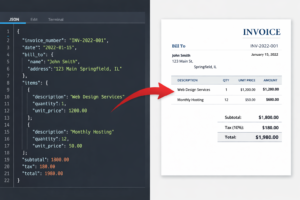
E-commerce platforms, SaaS businesses, and service providers often store transaction data as JSON objects. When a customer makes a purchase, an automated workflow can take that JSON data and instantly generate a professional, printable PDF invoice or receipt, which is then sent to the customer.
Data Archiving and Compliance
For legal and compliance reasons, you may need to archive API responses, audit logs, or user data in a non-repudiable, tamper-evident format. Converting JSON logs to PDF creates a snapshot that is much harder to alter than the original JSON text file and is often preferred by auditors.
Sharing Data with Non-Technical Stakeholders
Your backend might be a world of APIs and JSON objects, but your manager, client, or legal team likely doesn’t want to parse through raw JSON. Converting that data into a clean, well-formatted PDF makes the information accessible, understandable, and professional.
3. Method 1: Quick & Easy Online Converters
For one-off conversions or when you don’t have access to a development environment, online converters are the simplest solution. Websites like AConvert provide a straightforward interface.
How They Work
These tools typically work by taking your JSON input (either uploaded from your computer, provided via a URL, or pasted directly into a textbox), parsing it, and then rendering it into a PDF document. The conversion quality can vary widely depending on the tool’s sophistication.
Pros and Cons
- Pros: No software installation required; very fast for small files; completely client-side options can be more secure.
- Cons: Not suitable for automation; potential privacy concerns with sensitive data; limited customization and styling options; often struggles with very large or deeply nested JSON files.
Step-by-Step Guide with a Popular Tool
Using a tool like AConvert as an example:
- Access the Tool: Navigate to the
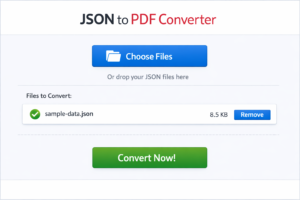
JSON to PDFsection of the website. - Select Input: Click “Choose Files” to upload your
.jsonfile from your local device, or click the “URL” button to fetch JSON from an online source. - Configure Options (If Available): Some tools may offer settings for page orientation, margins, or basic styling. Adjust these as needed.
- Convert: Click the “Convert Now!” button.
- Download: Once the conversion is complete, download the resulting PDF file.
4. Method 2: Using Programming Libraries (For Developers)
For anyone dealing with repeated conversions, large volumes of data, or specific formatting needs, a programmatic approach using a programming library is the most powerful and flexible method.
Python Approach
Python is a favorite for data processing due to its extensive ecosystem.
reportlab: A powerful library for creating PDFs programmatically. You define every element (text, lines, images) using Python code. It’s ideal for creating highly customized PDFs from scratch.fpdf(PyFPDF): A simpler library, inspired by PHP’s FPDF. It’s great for quickly generating basic PDFs with text, images, and simple tables.pdfkit: This library acts as a wrapper for the command-line toolwkhtmltopdf. It allows you to convert HTML/CSS content into a PDF. This is excellent if you want to design your document using HTML and CSS and then convert it.
Step-by-Step Python Example using pdfkit (HTML to PDF approach):
python
import json
import pdfkit

# 1. Load your JSON data
with open('data.json', 'r') as f:
    data = json.load(f)

# 2. Create an HTML string using the JSON data (simple example)
html_content = f"""
<!DOCTYPE html>
<html>
<head><title>My Report</title></head>
<body>
<h1>Customer Invoice</h1>
<p><strong>Name:</strong> {data['customer_name']}</p>
<p><strong>Date:</strong> {data['date']}</p>
<h2>Items:</h2>
<ul>
"""
for item in data['items']:
    html_content += f"<li>{item['name']} - ${item['price']}</li>"

html_content += """
</ul>
<p><strong>Total:</strong> $""" + str(data['total']) + """</p>
</body>
</html>
"""

# 3. Convert the HTML string to a PDF
pdfkit.from_string(html_content, 'invoice.pdf')
JavaScript/Node.js Approach
For developers in the JavaScript ecosystem, Node.js offers several excellent libraries.
pdfmake: A pure JavaScript library that works on both the client and server. It defines the document structure using JavaScript objects, which is a very natural fit if you’re already working with JSON. It supports complex layouts, tables, and styling.puppeteer: A Node library that provides a high-level API to control headless Chrome or Chromium. This is arguably the most powerful tool, as it allows you to generate PDFs from any web page or HTML content, respecting all CSS and JavaScript.
Step-by-Step Node.js Example using pdfmake:
javascript
// pdfmake example
const PdfPrinter = require('pdfmake');
const fs = require('fs');

// 1. Load JSON data
const rawData = fs.readFileSync('data.json');
const data = JSON.parse(rawData);

// 2. Define document definition using pdfmake
const docDefinition = {
    content: [
        { text: 'Customer Invoice', style: 'header' },
        { text: `Name: ${data.customer_name}` },
        { text: `Date: ${data.date}` },
        { text: 'Items:', style: 'subheader' },
        {
            table: {
                body: [
                    ['Item', 'Price'],
                    ...data.items.map(item => [item.name, `$${item.price}`])
                ]
            }
        },
        { text: `Total: $${data.total}`, style: 'total' }
    ],
    styles: {
        header: { fontSize: 18, bold: true, margin: [0, 0, 0, 10] },
        subheader: { fontSize: 14, bold: true, margin: [0, 10, 0, 5] },
        total: { fontSize: 12, bold: true, margin: [0, 10, 0, 0] }
    }
};

// 3. Create the PDF
const printer = new PdfPrinter();
const pdfDoc = printer.createPdfKitDocument(docDefinition);
pdfDoc.pipe(fs.createWriteStream('invoice.pdf'));
pdfDoc.end();
5. Method 3: Leveraging API-Based Solutions for Automation
When you need to integrate JSON to PDF conversion into a complex application or workflow without managing your own infrastructure, a dedicated API is the answer.
When to Use an API
- You have a high volume of conversions.
- You want to offload the heavy processing to a scalable, third-party service.
- Your application is built on a platform where installing native libraries (like
wkhtmltopdf) is difficult (e.g., some serverless environments). - You need guaranteed uptime and advanced features like encryption, digital signatures, or cloud storage integration.
How REST APIs Work for Conversion
Most conversion APIs operate via REST. You send an HTTP request (usually a POST) containing your JSON data and a set of configuration parameters (like page size, margins, and template ID). The API processes the request and returns the generated PDF file in the response or stores it in a cloud bucket and provides a URL.
Example API Workflow (Conceptual)
- Authentication: Obtain an API key from the service provider.
- Prepare Request: Create a
POSTrequest to the API endpoint. The body might include:json_data: The raw JSON string or a URL to your JSON file.template_id: An ID referencing a pre-designed HTML/CSS template.output_options: Settings likeorientation: 'landscape',margin: '1cm'.
- Send Request: Use a tool like
curl, Postman, or your programming language’s HTTP client. - Handle Response: The API returns a PDF file. You can then save it, stream it to the user, or send it via email.
This method provides a powerful middle ground between the simplicity of online tools and the full control of programming libraries.
6. Method 4: Advanced Techniques with Templating Engines
For the most sophisticated and professional-looking PDFs, combining a templating engine with a PDF renderer is the gold standard.
Creating Dynamic PDFs with HTML/CSS Templates
This approach leverages the power of HTML and CSS for design. You create a template file (e.g., template.html) that uses placeholders. Your application loads this template, replaces the placeholders with data from your JSON, and then converts the final HTML into a PDF.
The Headless Browser Approach (Puppeteer, Playwright)
Tools like Puppeteer (Node.js) or Playwright (multi-language) control a headless (invisible) browser. They can load any URL or HTML string, wait for JavaScript to execute, and then use the browser’s native “Print to PDF” functionality to generate a pixel-perfect PDF.
This is the most reliable way to render complex layouts, custom fonts, and CSS frameworks like Tailwind or Bootstrap.
Step-by-Step Node.js Example using Puppeteer:
javascript
const puppeteer = require('puppeteer');
const fs = require('fs');
const handlebars = require('handlebars'); // Popular templating engine

async function generatePDF() {
    // 1. Load JSON data
    const data = JSON.parse(fs.readFileSync('data.json', 'utf8'));

    // 2. Load HTML template
    const templateHtml = fs.readFileSync('template.html', 'utf8');

    // 3. Compile template with data
    const template = handlebars.compile(templateHtml);
    const finalHtml = template(data);

    // 4. Launch headless browser and create PDF
    const browser = await puppeteer.launch();
    const page = await browser.newPage();
    await page.setContent(finalHtml, { waitUntil: 'networkidle0' });
    const pdfBuffer = await page.pdf({ format: 'A4' });

    // 5. Save PDF
    fs.writeFileSync('report.pdf', pdfBuffer);

    await browser.close();
}

generatePDF();
7. Best Practices for High-Quality PDF Output
Converting JSON to PDF can be fraught with pitfalls if not done carefully. Here are key best practices to ensure a professional result.
Handling Complex and Nested JSON
JSON data is often deeply nested. When generating a PDF, you must flatten or iterate through this structure logically. Use recursive functions to parse nested objects and display them in a readable way, perhaps using indentation or nested tables. For complex data, consider creating a summary page with high-level metrics and then an appendix with the raw, pretty-printed JSON for reference.
Styling and Layout Considerations
A PDF is a visual document. Simply dumping raw JSON text into a PDF defeats the purpose of the conversion.
- Use Tables: For lists of objects (e.g., products in an invoice), a table is the most readable format.
- Leverage Headers and Footers: Add page numbers, document titles, and dates.
- Branding: Incorporate your company logo, colors, and fonts to make the document instantly recognizable.
- Whitespace: Don’t be afraid of whitespace. A cluttered page is hard to read.
Performance Optimization for Large Datasets
Generating a PDF from a large JSON file (e.g., 100+ MB) can be memory-intensive and slow.
- Streaming: For libraries that support it, use streaming to generate the PDF incrementally rather than holding everything in memory at once.
- Pagination: Break the data into multiple pages or even multiple PDF files.
- Summarize: For extremely large datasets, generate a summary PDF and provide a link to the raw JSON or a detailed CSV for those who need it.
Security Considerations
- Data Privacy: Be extremely cautious when using online converters for sensitive data. Prefer client-side tools or self-hosted solutions.
- Input Validation: If your conversion process accepts user-submitted JSON, always validate it to prevent injection attacks, especially if you are embedding the JSON into an HTML template.
- PDF Security: For sensitive documents, use PDF security features like user/owner passwords, encryption, and digital signatures.
8. Troubleshooting Common Conversion Issues
Despite your best efforts, you may encounter issues. Here’s how to solve the most common ones.
Handling Large Files
Problem: The conversion fails or times out.
Solution:
- Increase server memory/timeout limits if using a self-hosted solution.
- Implement chunking: Process the JSON data in batches and generate multiple PDFs or pages.
- Consider using a dedicated API service built for high throughput.
Character Encoding Problems
Problem: Special characters (e.g., é, ü, ñ, or emojis) show up as gibberish or question marks.
Solution:
- Ensure your JSON file is saved with UTF-8 encoding.
- When loading the JSON, explicitly use UTF-8.
- In HTML-based approaches, ensure your template has
<meta charset="UTF-8">. - In libraries like
reportlab, ensure you embed a font that supports the required Unicode characters.
Layout and Formatting Inconsistencies
Problem: The PDF output looks different from the HTML preview, or text is cut off.
Solution:
- Box Model: Be aware of differences in how browsers and PDF renderers handle CSS box models. Stick to simple, well-supported CSS properties.
- Page Breaks: Use CSS
page-break-before,page-break-after, andpage-break-insideto control how content flows across pages. - Margins: Define clear margins for both the body of the HTML and in the PDF generation options.
9. The Future of Data Conversion
The relationship between JSON and PDF is evolving. As web technologies advance, we’re seeing a trend toward more dynamic, interactive documents. While PDFs are inherently static, technologies like PDF with annotations and forms are becoming more powerful. We may see more seamless integrations where a PDF can embed JSON data or even be “rehydrated” back into JSON.
Furthermore, the rise of no-code and low-code platforms is democratizing this conversion process. Business users who aren’t developers can now build automated workflows that pull data from APIs (JSON) and generate branded PDF reports using drag-and-drop interfaces.
The need to convert JSON to PDF isn’t going away; it’s becoming more central to how businesses automate their documentation processes. Mastering the techniques outlined in this guide will give you a significant advantage, whether you’re a developer building robust systems or a business leader optimizing operations.
10. Conclusion
Converting JSON to PDF is a fundamental task that sits at the intersection of data processing and document management. As we’ve explored, the “best” method depends entirely on your specific needs.
For a one-off task, a simple online converter is your quickest bet. For developers needing to integrate this functionality into an application, a programming library like Python’s pdfkit or Node.js’s pdfmake or puppeteer offers unparalleled flexibility and power. For scalable, enterprise-level automation, a dedicated API provides the reliability and features you need.
By understanding the underlying principles of both formats and following the best practices for styling, performance, and security, you can reliably generate professional, high-quality PDFs from any JSON data source. This capability will streamline your reporting, automate your invoicing, and ensure that your valuable data can be shared and understood by anyone, anywhere.
11. Frequently Asked Questions (FAQs)
Q1: Can I convert a JSON file to PDF for free?
Yes, many online tools offer free conversion for small files. Open-source programming libraries like reportlab and pdfmake are also completely free to use.
Q2: How do I convert a large JSON file (over 100 MB) to PDF?
For large files, an online tool is likely to fail. You should use a programmatic method like a Python script that processes the JSON in chunks, or a headless browser solution that can handle large HTML payloads. You may also need to increase server resources.
Q3: Can I preserve the styling and formatting of my data?
Absolutely. The best way is to use an HTML/CSS template and convert it to PDF using a tool like wkhtmltopdf or Puppeteer. This gives you full control over the visual output, including fonts, colors, and layouts.
Q4: Is it safe to convert sensitive JSON data using an online tool?
Generally, no. For any data that contains personally identifiable information (PII), financial data, or trade secrets, you should use a self-hosted, programmatic solution or a trusted API that offers data encryption and privacy guarantees.
Q5: What is the difference between converting JSON to PDF and printing a webpage?
When you print a webpage, you are converting the rendered HTML/CSS to PDF. Converting JSON to PDF often involves an intermediate step where you first transform the JSON into HTML (or a library-specific document definition) before generating the PDF. The principle is similar, but the starting point is raw data, not a visual layout.
Q6: Which programming language is best for converting JSON to PDF?
Python is excellent for data processing and has robust PDF libraries. Node.js is ideal if your application is already JavaScript-based, and it offers powerful tools like Puppeteer. Java is a solid choice for large, enterprise-scale applications.