Merge PDF Online Free : In today’s digital world, PDFs are the undisputed kings of document sharing. Whether you’re a student compiling research, a professional submitting a report, or a business owner merging contracts, the need to combine multiple PDF files into a single, organized document is universal. This is where the process of Merge-PDF becomes essential.
But what exactly does it mean to merge PDFs? Why is it so important? And most importantly, what are the best, safest, and most efficient ways to do it in 2026?
This comprehensive guide will answer all those questions and more. We’ll explore everything from free online tools to advanced software, ensuring you have all the knowledge you need to combine your PDFs like a pro. By the end, you won’t just know how to merge PDFs; you’ll understand the nuances of each method, allowing you to choose the perfect solution for your specific needs.
Part 1: Understanding the Merge-PDF Process
Before diving into the “how,” it’s crucial to understand the “what” and “why.” Merging PDFs is more than just sticking files together. It’s about creating a seamless, organized, and professional final product.
What is a PDF Merge?
At its core, merging PDFs (often searched as “merge-PDF”) is the process of taking two or more PDF files and combining them into a single, unified document. You can usually control the order of the pages, so the final file flows exactly as you intend. Think of it like assembling chapters of a book—you have all the parts, and merging is the binding process.
Why Do People Need to Merge PDFs?
The reasons are endless, but here are some of the most common scenarios:
- Professional Reports: Combining monthly sales reports into a single quarterly document.
- Academic Submissions: Merging a thesis cover page, table of contents, and multiple chapters into one file for submission.
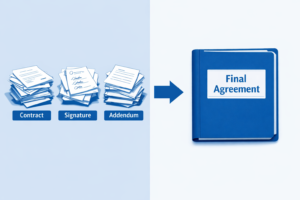
- Legal Documents: Combining scanned contracts, addendums, and signatures into a complete agreement.
- Personal Use: Creating a single PDF from multiple travel itineraries, recipes, or e-tickets for easy access.
- E-books & Portfolios: Assembling a portfolio of work or compiling articles into an e-book.
- Part 2: The Best Ways to Merge PDF Files
There are three primary ways to merge PDFs: using free online tools, using desktop software (both free and paid), and using mobile apps. Your choice depends on factors like file size, privacy concerns, internet availability, and the complexity of your task.
Method 1: Free Online PDF Mergers (The Easiest & Most Popular)
For most users, online PDF mergers are the go-to solution. They are quick, require no software installation, and are usually free for basic use. Websites like iLovePDF have built their entire reputation on providing these essential tools.
How to Merge PDFs Online (A Step-by-Step Guide):
- Find a Trusted Tool: Open your browser and search for “Merge PDF” or go directly to a reputable site like iLovePDF, Smallpdf, or Adobe Acrobat online.
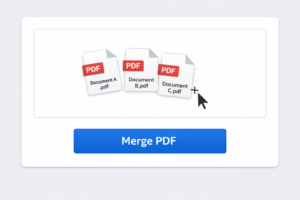
- Upload Your Files: Click the “Select PDF files” button or simply drag and drop your files into the designated area.
- Arrange the Order: Most tools will show thumbnails of your documents. You can drag and drop these thumbnails to arrange the pages or entire documents in the correct order.
- Merge: Click the “Merge PDF” or “Combine Files” button. The tool will process your request.
- Download: Once the process is complete, download your newly merged PDF to your computer. The website will typically delete your files from its servers after a few hours.
Pros:
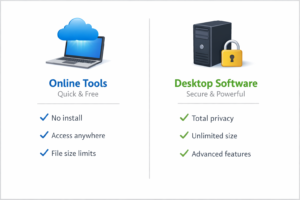
- No Installation: Accessible from any device with a browser.
- Fast & Easy: The interface is usually intuitive and simple.
- Often Free: Basic merging is typically free with no sign-up required.
Cons:
- Privacy Concerns: You are uploading your documents to a third-party server. Never use free online tools for sensitive, confidential, or legally privileged documents.
- File Size Limits: Most free tools have a cap on the total file size (e.g., 100MB or 200MB).
- Internet Dependent: You need a stable internet connection.
Method 2: Desktop Software (For Large Files & Privacy)
If you regularly work with large files or sensitive information, desktop software is the superior choice. Your files never leave your computer, ensuring complete privacy.
Free Desktop Options:
- PDFsam (PDF Split and Merge): A popular open-source tool. The free version allows you to merge, split, and rotate PDFs. It’s powerful and respects your privacy.
- Preview (Mac): Mac users have a built-in PDF editor. Open a PDF in Preview, then drag thumbnails from other PDFs into the sidebar to combine them. It’s seamless and free.
Paid Desktop Options (Professional Features):
- Adobe Acrobat Pro DC: The industry standard. It offers powerful merging capabilities, allowing you to combine files of different formats (Word, Excel, images) into a single PDF, reorder pages, and apply advanced document management features.
- Nitro PDF Pro: A robust alternative to Adobe with a similar feature set.
How to Merge Using Adobe Acrobat Pro (Example):
- Open Acrobat and go to the “Tools” tab.
- Select “Combine Files.”
- Click “Add Files” and select the PDFs (or other files) you want to merge.
- Reorder the files as needed.
- Click “Combine” to create your new PDF.
Pros:
- High Privacy: Your data stays local.
- No File Size Limits: Can handle hundreds of pages and massive files.
- More Features: Often includes advanced options like page-level merging, file compression, and OCR (optical character recognition) for scanned documents.
Cons:
- Software Installation: Requires downloading and installing a program.
- Cost: High-quality desktop software can be expensive (though free options like PDFsam exist).
- Learning Curve: Some professional software can be complex for beginners.
Method 3: Mobile Apps (For On-the-Go Merging)
Need to merge PDFs from your phone? There are excellent mobile apps for both iOS and Android.
- Adobe Acrobat Reader (Free): The free mobile app allows you to merge PDFs. It’s a reliable and trusted option.
- iLovePDF Mobile App: A great companion to the online tool, offering merging, splitting, and other functions in a mobile-optimized interface.
How to Merge on a Mobile App:
- Download and open your chosen app (e.g., Adobe Acrobat Reader).
- Tap the “Merge PDF” icon (usually found in the “Tools” or “More” section).
- Select the PDF files from your phone’s storage (e.g., Files, Google Drive, iCloud).
- Arrange the order of the files.
- Tap “Merge” or “Combine.”
- Save or share the new PDF directly from your phone.
Pros:
- Convenience: Perfect for merging files while away from your desk.
- Integration: Seamlessly works with cloud storage apps on your phone.
Cons:
- Screen Size: Managing multiple files can be fiddly on a small screen.
- Privacy: As with online tools, be mindful of uploading sensitive files to a mobile app’s servers (unless it’s a local-processing app).
Part 3: A Detailed Comparison: Online vs. Offline PDF Mergers
To help you make the right choice, here’s a direct comparison of the key factors.
| Feature | Online PDF Merger (e.g., iLovePDF) | Desktop Software (e.g., PDFsam) | Mobile App (e.g., Adobe Reader) |
|---|---|---|---|
| Privacy | Low to Medium (Files uploaded to server) | High (Files remain on your computer) | Medium (Depends on app’s processing) |
| File Size Limit | Yes (Often 100MB – 200MB) | No | Varies by app |
| Cost | Free for basic use | Free options available; paid for advanced | Free for basic use |
| Internet Required | Yes | No | Can be offline with local files |
| Ease of Use | Very Easy | Easy to Medium | Easy |
| Speed | Depends on upload/download speed | Very Fast (Local processing) | Varies |
| Additional Features | Limited in free version | Advanced (page manipulation, OCR) | Basic to Medium |
Part 4: Step-by-Step Visual Guide to Merging PDFs
Let’s walk through the most common scenario: merging two or more PDFs using a free online tool. We’ll use the popular iLovePDF platform as our example.
Step 1: Access the Tool
Go to the iLovePDF website and navigate to the Merge PDF tool.
Step 2: Upload Your Files
Click the “Select PDF files” button. A file explorer window will open. Select the files you want to combine. You can hold down the Ctrl key (or Cmd on Mac) to select multiple files at once. Alternatively, you can drag and drop the files directly into the browser window.
Step 3: Arrange the Documents
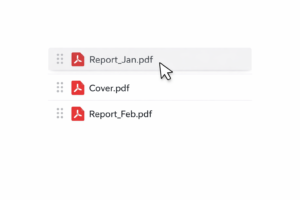
Once the files are uploaded, you’ll see them listed. This is a critical step. Most mergers allow you to drag and drop the files to reorder them. If your final document needs to have “Cover Page” first, then “Chapter 1,” then “Chapter 2,” ensure they are in that exact order in the list.
Step 4: Merge and Download
After confirming the order, click the red “Merge PDF” button. The tool will process your files. Once complete, a download button will appear. Click it to save your new, merged PDF to your computer.
Pro Tip: Always check the merged file before deleting the originals. Open the new PDF, scroll through a few pages, and ensure the order is correct and no pages are missing.
Part 5: Advanced Merge-PDF Techniques & Tips
Once you’ve mastered the basics, you can explore more advanced techniques to truly master your PDF workflow.
1. Merging Specific Pages (Page-Level Merging)
Most basic mergers combine whole files. However, what if you only need pages 1-5 from one PDF and pages 10-15 from another? You need a tool that offers page-level merging or extraction. Adobe Acrobat Pro and some advanced online tools allow you to select specific page ranges before merging, giving you surgical control over the final document.
2. Merging Different File Types
The term “Merge-PDF” is often used to describe combining any files into a single PDF. The best tools, like Adobe Acrobat Pro and some advanced online converters, let you merge PDFs with images (JPG, PNG), Microsoft Word files, Excel spreadsheets, and PowerPoint presentations. The software intelligently converts each file to PDF format before merging them into one.
3. Compressing After Merging
A common problem after merging several large PDFs is that the final file size can become huge—too large to email. The solution is to compress the merged PDF. Many of the same tools that merge PDFs also offer PDF compression. It’s often a good practice to merge, then compress to make the file more shareable.
4. Using OCR for Scanned Documents
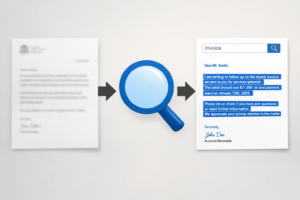
If you are merging scanned documents (images of text), the resulting PDF is just a collection of pictures. You won’t be able to search for text within it. To fix this, use a tool with OCR (Optical Character Recognition) . OCR software analyzes the images, recognizes the text, and creates a searchable, selectable PDF document. This is a game-changer for archiving and managing scanned documents.
Part 6: Security and Privacy: What You Need to Know
In an age of data breaches, understanding the privacy implications of online tools is paramount. When you use a free online service to merge PDFs, you are uploading your documents to a third-party server.
Best Practices for Secure PDF Merging:
- Read the Privacy Policy: Before using any online tool, especially for sensitive documents, read their privacy policy. Look for statements about automatic file deletion (e.g., “files are automatically deleted from our servers after 1 hour”).
- Avoid Sensitive Information: Never use a free online merger for documents containing financial data, medical records, trade secrets, or personal identification (like social security numbers).
- Use Desktop Software for Confidential Work: For any document with a confidentiality clause or containing sensitive information, use a desktop tool like PDFsam or Adobe Acrobat. This ensures the data never leaves your local network.
- Encrypt Your Merged PDF: After merging, you can add another layer of security. Most professional tools allow you to password-protect your final PDF, restricting who can open it and what they can do with it (e.g., prevent printing or editing).
Part 7: Troubleshooting Common Merge-PDF Problems
Even with the best tools, you might occasionally run into issues. Here’s how to solve the most common ones.
Problem 1: “File size is too large for the free tool.”
- Solution: This is a common limit. Try compressing the individual files before merging them. If that doesn’t work, switch to a desktop tool like PDFsam, which has no file size limits.
Problem 2: “The merged PDF has blurry text or images.”
- Solution: This usually happens if you use a tool that compresses files by default to save server space. Use a high-quality tool like Adobe’s online merger or a desktop application that preserves the original quality.
Problem 3: “The order of pages is wrong.”
- Solution: Always double-check the order in the tool before clicking “Merge.” If you’ve already downloaded the file, don’t re-upload it and start over. Instead, use a PDF tool with a “reorder pages” function to fix it after the fact.
Problem 4: “The tool keeps saying ‘Merge Failed’.”
- Solution: This can be due to corrupted PDF files. Try opening the file in a PDF reader to see if it’s valid. It could also be a server-side issue. Try again later or use a different tool.
Problem 5: “I merged files, but the file names were lost.”
- Solution: This is normal. When you merge files, the final PDF takes on the name you give it during the download step. The original file names are not preserved within the new document’s content.
Part 8: The Future of PDF Merging
As we move further into 2026, the process of merging PDFs is becoming more integrated and intelligent.
- AI-Powered Merging: Imagine a tool that doesn’t just combine files but intelligently analyzes them. It could detect duplicate pages, automatically arrange documents based on their content (e.g., putting all invoices together), or even suggest the best order for a cohesive document.
- Cloud-Native Workflows: The line between online tools and desktop software is blurring. We’re seeing more applications that offer desktop-grade processing power with cloud storage integration, allowing for seamless merging directly from Google Drive, Dropbox, or OneDrive without downloading files locally first.
- Automated Workflows: For businesses, merging PDFs is becoming an automated step in larger processes. Services like Zapier and Make allow you to create automations where, for example, every time a new contract is signed via an e-signature tool, it’s automatically merged with a master agreement and saved to a cloud folder.
Conclusion: Choose the Right Merge-PDF Tool for You
The ability to efficiently merge PDF files is a fundamental digital skill. Whether you’re a student, a business professional, or just someone looking to organize personal documents, there’s a perfect solution out there for you.
- For speed, convenience, and free access for non-sensitive documents, online tools are your best bet.
- For privacy, unlimited file sizes, and advanced features, invest time in learning a desktop application like PDFsam or Adobe Acrobat.
- For quick tasks on the go, a mobile app is the way to go.
By understanding the options and following the best practices outlined in this guide, you can confidently merge any PDF, secure in the knowledge that you’re using the right tool for the job.